
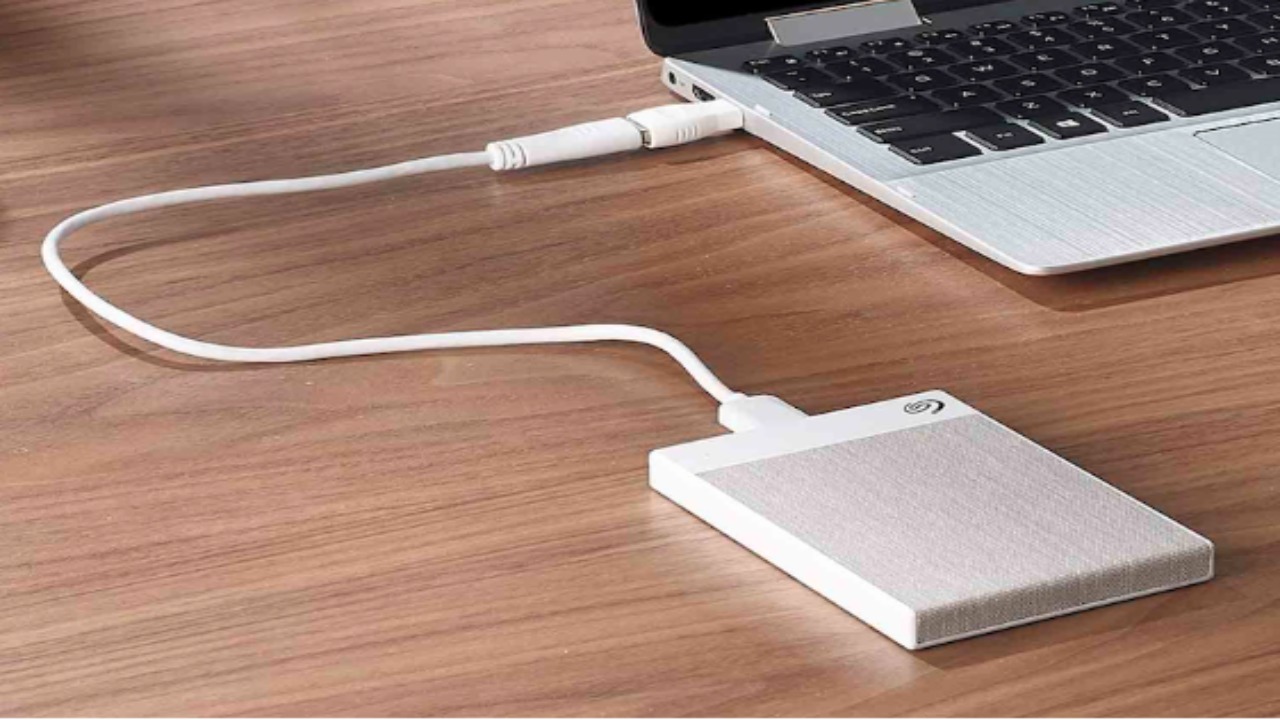


[10 Ways] Seagate External Hard Drive Not Showing up on Windows 11/10/8/7
How to Fix Seagate External Hard Drive Not Showing up on Windows 11/10/8/7
So, your Seagate external hard drive is not showing up on Windows 11/10/8/7 PC? It’s especially exasperating if you’ve got a ton of irreplaceable files on that thing. But you’re probably wondering, Why is my Seagate hard drive not showing up on Windows, and “How do I fix Seagate external hard drive not detected?”
Stick around, because we’ll break down the usual suspects behind this problem. Furthermore, we’ll give you 10 ways to troubleshoot your Seagate external disk based on whether it appears in File Explorer, or in Disk Management, or completely ghosts you in both.
Part 1: Why Is My Seagate Hard Drive Not Showing Up?
If you’re wondering, “Why is my Seagate hard drive not showing up,” it could be because of a bunch of reasons, such as:
-
Bad USB cable or port.
-
The drive is not getting enough power, or the adapter is not functioning.
-
New/internal drives need to be set up in Disk Management.
-
Outdated, missing, or corrupted disk drivers.
-
The drive is damaged or has a hardware problem.
-
The same drive letter is used by another disk.
-
Drive has file system corruption.
-
Windows system files are damaged.
-
Malware/viruses are blocking or interfering with drive detection.
Part 2: Rescue Data From Your Unreadable Seagate Hard Drive
Before you apply any solution to troubleshoot the ‘Seagate portable drive not showing up on Windows’ issue, rescue the data from the disk. This is a wise step in case the disk’s full-on corrupted and trying to troubleshoot it, think about formatting. It will nuke every file on it.
So, if you actually want your data back, you’ll need a heavy-duty Seagate recovery tool, like 4DDiG Data Recovery. It can dig up files even when your Seagate drive is unreadable. Here are this tool’s key features at a glance:
-
This app’s interface is easier to grasp by both beginners and professionals with no technical skills required.
-
This file retrieval app can rescue files lost due to corruption, removal by mistake, or formatting.
-
The tool supports 2000+ file types, including RAW files, audio, videos, images, etc.
-
It allows you to inspect recovered files by their type and path, and also repair files.
-
It offers a free version for Windows users.
-
Impressive success rate in hard drive recovery.
Here’s how to rescue data from the unreadable Seagate drive with this tool:
Step 1: Connect the unreadable Seagate drive to your computer. Execute the recovery tool on the same PC.
Step 2: Pick the Seagate disk. Choose the file types you wish to rescue. Tap “Scan.”

Step 3: Halt or stop the scan once you find the files you were looking for. Preview them.

Step 4: Click “Recover” to export the rescued Seagate files to your computer or cloud drive.

Part 3: How Do I Fix Seagate External Hard Drive Not Detected?
After you’ve successfully rescued data, here’s your solution to “how do I fix Seagate external hard drive not detected by Windows?” Pick a method based on whether the Seagate disk appears in either Disk Management or File Explorer, or doesn’t show up in both:
Method 1: Check Hardware Connections
The most frequent reason the ‘Seagate external hard drive is not showing up’ in File Explorer and Disk Management is because of a bad connection. So, double-check if that USB cable’s actually plugged in tight. Wiggle it a bit, as sometimes it just needs a little nudge.
If nothing happens, switch to a different port. Don’t even bother with weak USB hubs and take a good look at the cable, too. If it’s frayed, swap it out, and if you can, grab a new cable or plug the drive into a different computer.
Method 2: Check Power Supply
An external hard drive needs enough power to function. So, if the Seagate external hard drive is not showing up on File Explorer and Disk Management, chances are it’s because of the power supply. So, examine if the drive’s power light is on and wiggle the adapter to confirm it’s plugged all the way in. Also, double-check you’re using the correct adapter with the right voltage and amperage, and examine it for damage.
Method 3: Update or Reinstall Drivers
In case the Seagate external hard drive is not showing up on Windows 11/10 Disk Management, it could be because of an obsolete or corrupted disk driver. So, update the driver. If that doesn’t do the job, reinstall it. To do so:
Step 1: Connect your unreadable Seagate disk to your computer. Press the “Win + X” keys. Then, execute “Device Manager.
Step 2: Tap “Disk drives” to extend it. Right-click the driver. Next, click “Update driver.”
Step 3: Either download the driver and install it manually or let Windows find a compatible one for your Seagate external disk.

Step 3: In case updating the Seagate driver doesn’t do the job, reinstall it. To do that, right-click the driver. Pick “Uninstall device.”
Step 4: Reboot the computer. Connect your Seagate disk to your computer again. Windows will automatically reinstall the disk’s driver.
Method 4: Use CHKDSK to Repair Your Drive
CHKDSK is useful for fixing a Seagate portable drive not showing up in Disk Management. It digs through your file system for errors and repairs corrupted files that may block detection. The tool also hunts for bad sectors, rescues readable data, and marks damaged areas to avoid future problems. Here’s how to execute it:
Step 1: Connect your unreadable Seagate disk to your computer. Then, type “cmd” in the Windows search field on the desktop.
Step 2: Execute “Command Prompt.” Type the following command. Hit “Enter” afterward:
-
CHKDSK [Seagate driver letter]: /f /r /x

Method 5: Format the Drive to NTFS
If your Seagate external hard drive is not showing up on Disk Management properly and appears as RAW or unallocated, then format it to NTFS. Here’s how to do that:
Step 1: Connect your unreadable Seagate disk to your computer. Press the “Win + X” keys. Then, execute “Disk Management.”
Step 2: Right-click the unreadable Seagate drive. Choose “Format.”
Step 3: Adjust the volume label, allocation unit size, and pick the file system as NTFS. Untick “Perform a quick format.” Hit “OK.”
Method 6: Give Your Drive a New Letter
Windows gives each drive a particular identifier letter. If two drives try to rock the same letter, it might result in the ‘Seagate external hard drive not showing up in File Explorer’ issue. So, you’ll need to give a new drive letter to your Seagate disk. To do so:
Step 1: Connect your unreadable Seagate disk to your computer. Press the “Win + X” keys. Then, execute “Disk Management.”
Step 2: Right-click the unreadable Seagate drive. Tap “Change Drive Letter and Paths.”
Step 3: Click “Change.” Then, select a new and unused drive letter. Hit “OK.”

Method 7: Run Hardware Troubleshooter
Your Seagate portable drive might not be showing up on File Explorer and Disk Management because of a hardware malfunction. So, you can employ the Windows Hardware and Devices Troubleshooter. It will scan for minor hardware issues, like with USB settings and connections that can prevent your Seagate drive from getting recognized by the system. Here’s how to execute the Troubleshooter:
Step 1: Connect your unreadable Seagate disk to your computer. Press the “Win + X” keys. Then, execute “Windows PowerShell (Admin).”
Step 2: Type the following command. Hit “Enter” afterward:
-
msdt.exe -id DeviceDiagnostic
Step 3: Tap “Next” and follow the on-screen steps to troubleshoot any hardware problems.

Method 8: Test the Bare Drive
Sometimes the USB-to-SATA adapter inside a Seagate external drive’s case fails, even if the drive itself is fine. This might lead to ‘Seagate external hard drive not showing up’ in File Explorer and Disk Management. Thus, test the bare drive without the adapter. Here’s how to do that:
Step 1: Connect the unreadable Seagate drive directly to a desktop motherboard or use a SATA-to-USB dock/new enclosure.
Step 2: If it functions, the case or power supply is faulty. If not, the drive may be dead.
Step 3: So, try another drive in the same setup to confirm.
Method 9: Run Seagate Diagnostic Tool
Seagate’s SeaTools is a diagnostic software that examines for malfunctions with Seagate drives, like ‘Seagate external hard drive is not showing up’ on Windows. It can detect hardware issues, bad sectors, and corrupted data, helping you know if the drive needs replacement. The tool also supports warranty checks and gives early warnings of failure. By showing the type of damage, it makes data recovery faster and more accurate for professionals.
Method 10: Send It for Repair
Still wondering, “How do I fix Seagate external hard drive not detected?” In such a situation, your Seagate disk might be physically damaged. So, pick a professional and credible repair service near you, and reach out to them. Get a quote, and if all feels well, send the drive to them for repair.
Bottom Line
Hopefully, we’ve cleared your doubts regarding, “Why is my Seagate hard drive not showing up on Windows?” We’ve also answered your query, “How do I fix Seagate external hard drive not detected by Windows,” with the best solutions.
But before applying any solution, employ 4DDiG Data Recovery to safely rescue your files first. The tool can retrieve data from numerous internal/external devices and data loss scenarios with high success. Then, proceed with the solutions mentioned in the post to troubleshoot the ‘Seagate external hard drive not showing up’ on Windows 11/10/8/7. If nothing seems to work in your favor, the drive may need repair.
Read More: Ali Larter Movies and TV Shows Ranked Guide
'%3e%3crect%20y='0.445312'%20width='48'%20height='48'%20rx='24'%20fill='white'%20fill-opacity='0.5'/%3e%3crect%20x='0.5'%20y='0.945312'%20width='47'%20height='47'%20rx='23.5'%20stroke='%23808080'/%3e%3cpath%20d='M34.625%2024.4453L14%2024.4453'%20stroke='%23808080'%20stroke-width='0.920053'/%3e%3cpath%20d='M23.375%2034.4453L13.375%2024.4453L23.375%2014.4453'%20stroke='%23808080'%20stroke-width='0.920053'/%3e%3c/g%3e%3cdefs%3e%3cfilter%20id='filter0_b_489_44344'%20x='-12'%20y='-11.5547'%20width='72'%20height='72'%20filterUnits='userSpaceOnUse'%20color-interpolation-filters='sRGB'%3e%3cfeFlood%20flood-opacity='0'%20result='BackgroundImageFix'/%3e%3cfeGaussianBlur%20in='BackgroundImageFix'%20stdDeviation='6'/%3e%3cfeComposite%20in2='SourceAlpha'%20operator='in'%20result='effect1_backgroundBlur_489_44344'/%3e%3cfeBlend%20mode='normal'%20in='SourceGraphic'%20in2='effect1_backgroundBlur_489_44344'%20result='shape'/%3e%3c/filter%3e%3c/defs%3e%3c/svg%3e)
'%3e%3crect%20y='0.445312'%20width='48'%20height='48'%20rx='24'%20fill='white'%20fill-opacity='0.5'/%3e%3crect%20x='0.5'%20y='0.945312'%20width='47'%20height='47'%20rx='23.5'%20stroke='%23808080'/%3e%3cpath%20d='M13.375%2024.4453L34%2024.4453'%20stroke='%23808080'%20stroke-width='0.920053'/%3e%3cpath%20d='M24.625%2014.4453L34.625%2024.4453L24.625%2034.4453'%20stroke='%23808080'%20stroke-width='0.920053'/%3e%3c/g%3e%3cdefs%3e%3cfilter%20id='filter0_b_489_44344'%20x='-12'%20y='-11.5547'%20width='72'%20height='72'%20filterUnits='userSpaceOnUse'%20color-interpolation-filters='sRGB'%3e%3cfeFlood%20flood-opacity='0'%20result='BackgroundImageFix'/%3e%3cfeGaussianBlur%20in='BackgroundImageFix'%20stdDeviation='6'/%3e%3cfeComposite%20in2='SourceAlpha'%20operator='in'%20result='effect1_backgroundBlur_489_44344'/%3e%3cfeBlend%20mode='normal'%20in='SourceGraphic'%20in2='effect1_backgroundBlur_489_44344'%20result='shape'/%3e%3c/filter%3e%3c/defs%3e%3c/svg%3e)