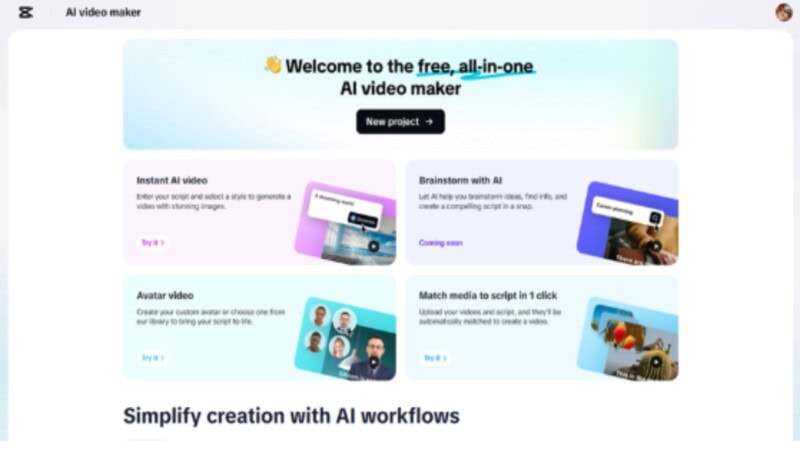
CapCut Web has made it simple and more professional to create voiceovers without needing to speak. With this platform, you can create natural and captivating voiceovers in a human-like voice. CapCut Web will provide the means to maintain high-quality narration, even if you prefer not to speak in your videos. The thoughts conveyed in writing can be turned into verbal conversations that seem real and intimate. Whether you’re camera-shy or need a quicker workflow, this method suits all types of content requirements.
The Emergence of AI Voiceover Tools in Content Creation
The need to avoid personal recording is increasingly being demanded in voiceovers. Marketers, educators, and content creators may sometimes require narration without recording their voices. CapCut addresses this need by offering its AI video editor, which makes the process easier. It is a solution that eliminates the accessibility/quality divide in a way that transforms written text to realistic audio. You will be able to target a larger audience without using professional recording devices or learning how to sing. The technical aspects are left to the AI video editor, allowing you to focus on delivering valuable content.
Writing the Best AI Narration Script
Good voiceovers start with well-written and clear scripts. Write in your style to sound natural in your narration by writing as you talk. Make sentences short and sharp. Avoid using jargon; instead, aim for clarity and smooth flow. Check out the CapCut Web AI script generator that will assist you in transforming ideas into organized material. All you need to do is enter your topic and key points, and the platform will generate a relevant script. This renders your voiceovers more interesting and adaptable to a variety of content types.
How to Choose the Best AI Voice for Your Content
CapCut Web offers a variety of voice styles and tones. Every voice possesses its own unique rhythm, pitch, and emotional background, allowing you to tailor the sound to the purpose of your video. Learning video usually goes well with quiet, audible voices. An excited tone is attention-getting when it comes to a product sales pitch or product demo. Expressive and dynamic voices are useful in entertainment content. The message, delivered with the appropriate voice, sounds natural and suits the tone of your video. When trying various things, experiment with different voices and settle on one.
The On-Screen AI Voiceovers and Assets Alignment
Timing is a requirement to professional-looking videos. Match your voiceovers with certain slides, text effects, or visual communications. This will allow the audience to remain attentive and allow the trail to be followed. CapCut Web enables you to place voice clips exactly in each scene. You can insert transitions that facilitate the flow of information. Presentation of visuals to accompany narration enhances comprehension and viewer memory. This is particularly essential in tutorials, product tutorials, or learning videos where clarity is of utmost importance.
How to Make the Voiceover Sound Real and Relatable
To capture viewers, voiceovers must be natural. CapCut Web allows you to change pitch, speed, and emotion of the AI-generated voice. One can alter the delivery to suit the situation in every scene. The slower tempo offers a richness, and emotional timbre gives a personal touch. Pauses enhance the flow and make speech more natural. Even background sounds can be layered to increase reality. Some text to audio free platforms have not been known to provide this level of detail, and CapCut Web offers depth in voice modulation.
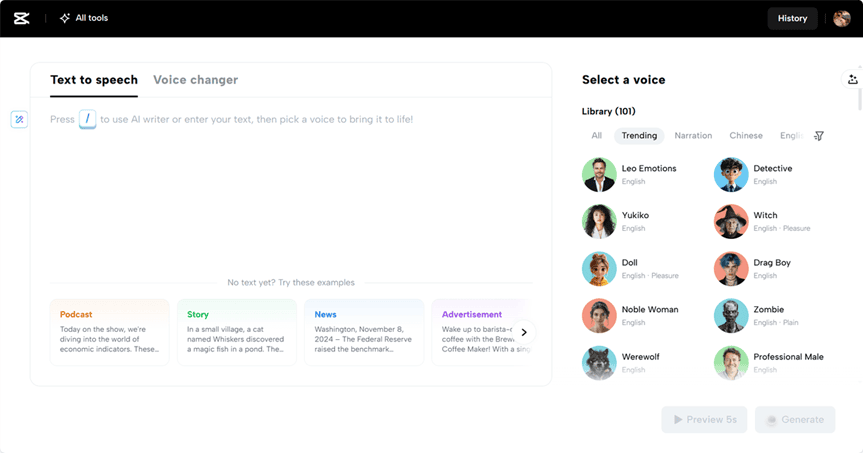
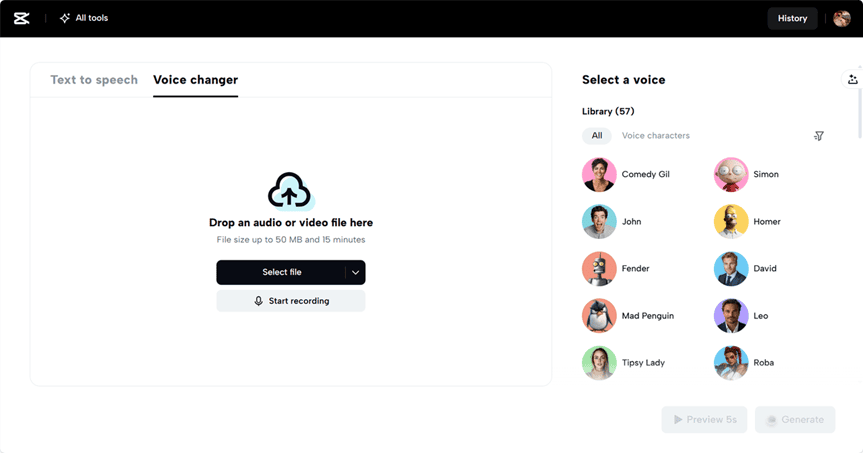
You can also perform additional customization by accessing the voice changer feature. This enables you to adjust voice features further, providing you with tonal leeway and personality. Whether you are recording a documentary or creating a product review, this tool makes your audio shine. Adjustments will help your voice align with your visual content and the audience’s expectations.
Make Videos Talk Without Your Voice
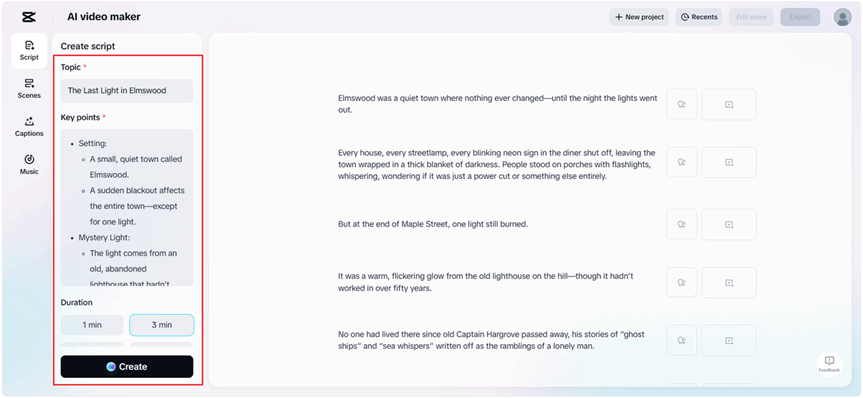
Step 1: Generate Script
Begin by clicking the “Script” section. Add your “Topic” and include all the “Key points” you want covered. The AI writer builds a natural-sounding script that delivers your message clearly, without you needing to speak. Review the generated script and adjust if needed. Then click the “Create” button to proceed.
Step 2: Create a video
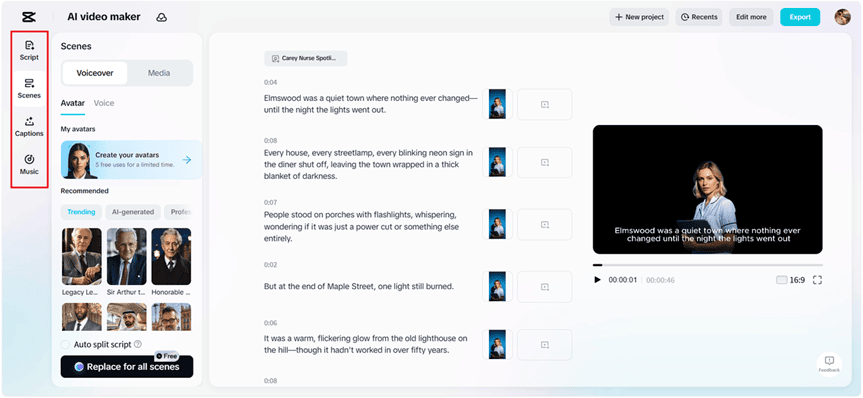
Open the “Scenes” tab to sync voiceover with your new script. If you’re skipping avatars, jump directly to the “Voice” tab. Choose a voice that fits your tone and hit “Apply for all scenes” for consistency. You can still enhance the viewing experience with moving text styles using the “Captions” option. Then, enrich the mood with background audio by selecting a track from the “Music” tab.
Step 3: Export or Edit more
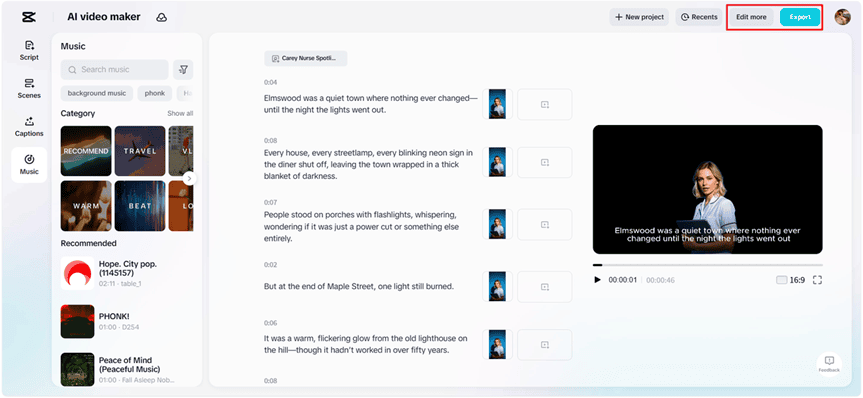
Watch the full video playback to confirm everything fits. If you’re happy with the result, click “Export” to download it. If you’d like more control over visuals, sound, or effects, choose “Edit more” and dive into CapCut’s full creative toolkit.
Conclusion
CapCut Web gives you the ability to create professional voiceovers without ever speaking. By using AI-generated narration, personalized voices, and flexible editing tools, you can sound clear, engaging, and authentic. From script generation to final video export, every feature supports realistic voiceover creation. This makes it easier for anyone to produce high-quality videos that connect with viewers—without needing a microphone or recording booth.
Read More: BasketBros: Fast & Fun Basketball Game for Quick Matches