Are you struggling to get people to click on your videos? Maybe the problem lies with your thumbnails. A thumbnail is what people see first when scrolling through YouTube, Instagram, or TikTok.
If the picture is dull or hazy, people will scroll on to the next video without clicking on yours. That is why thumbnails matter more than most creators know. A good thumbnail will turn an uninteresting video into a highly viewed video.
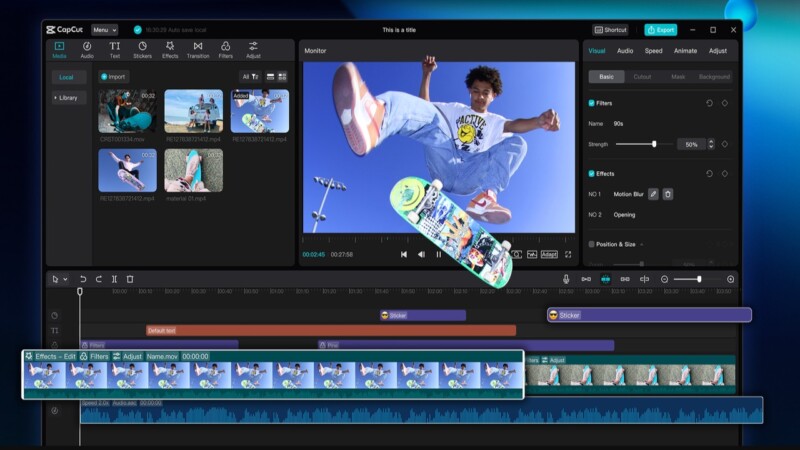
This is where the Photo Editor of the CapCut Desktop Video Editor steps in. It gives you tools with which to make thumbnails look sharp, bright, and professional.
You don’t need to be a designer to use it. You will learn why thumbnails are important, what makes CapCut PC’s features better for them, and how to create one that makes an impact through this guide.
Why Thumbnails Matter for Social Media Content Creators
A thumbnail is the first thing viewers notice before they open your video. It functions similarly to a cover page that informs viewers what to anticipate.
When the picture appears dull or blurry, most viewers will ignore it and select an alternative video. This implies that regardless of your content, it might not be viewed as much as it could be.
A well-designed and attractive thumbnail will boost the click-through rate as it gains attention and instills confidence. More people will open a video that looks polished and straightforward.
To get this done, creators need an efficient tool that makes editing easier. CapCut PC is special because its photo editor helps you create clear, bright, and clean thumbnails that get more clicks and steady growth.
CapCut Desktop Thumbnail Photo Editor
a) Cut Out and Change Backgrounds
Your thumbnail’s subject might lose the attention of the audience due to a cluttered background. In CapCut Desktop Video Editor, the auto cutout removes unwanted objects with just a click.
You can change the background to a solid color, gradient, or custom image, rendering your thumbnail sharp and focused-looking.
b) Insert Text Overlays & Fonts
Text in thumbnails makes people click before they even touch. CapCut on PC features a lot of fonts, colors, and designs that make the text bold and clear. Outlines or shadows make it easier to read, and intelligent placement puts emphasis on the content’s theme. Clear, strong text makes more people open your content.
c) Use Filters & Adjustments
A boring thumbnail can murder clicks even on a great video. CapCut Desktop Video Editor enables you to adjust brightness, contrast, and saturation to have a clearer appearance.
Filters add special looks that are appropriate for your mood or brand. Color matching with your video provides a professional and smooth appearance.
d) Stickers, Icons, and Shapes
Tiny graphics add flair to thumbnails. With the CapCut PC, you can include stickers, shapes, and icons to add energy or feeling. Correctly applied, these items grab attention without detracting from the subject, setting your content apart from cluttered social media feeds.
e) Save Time with Templates
Making it from the start takes time, especially if you post often. CapCut Desktop Video Editor and AI Video Generator include pre-designed templates you can edit with new text or images.
Templates keep your brand consistent and save effort. You can also design your own sets for different types of content, so every thumbnail looks professional.
f) Pricing Note
CapCut Desktop Video Editor has a lot of free tools. Some of its advanced features are paid, but the free features are strong enough to generate thumbnails that get more clicks.
Steps to Make Thumbnails in CapCut Desktop Video Editor
Step 1: Install CapCut PC
First, download the CapCut Desktop Video Editor from its official site. It will enable you to obtain the secure and latest version. The installation is quick, and the registration is free. Upon installation, you are already able to use the built-in tools.
A few of the more advanced features, such as stock images and extra filters, come with payment, but are still at your option. The editor also supports an online video editor, giving you the ability to work on a desktop or online.
Step 2: Start Your Design
In CapCut’s online photo editor, choose “Create New Image.” Or select the canvas type: Instagram post, story, or YouTube thumbnail that suits your goal. Your blank canvas is now perfectly sized and waiting for your spark.
Step 3: Edit with Photo Tools
Use the editing panel to include background removal, text overlays, or color adjustments. You can even include stickers, shapes, or filters to match your video’s vibe. For a faster option, consider using a pre-made template and tailoring it to fit your content.
Step 4: Export Thumbnail
Once your thumbnail is ready, click “Download all” to download the thumbnail. Choose a high-resolution output such as JPG or PNG. Your thumbnail is now prepared to be uploaded to YouTube, TikTok, Instagram, or any other platform.
Conclusion
An efficient thumbnail is one of the most effective ways to boost views and create regular engagement on social media. It’s the first thing they look at, and it decides if they click on your video or not.
The Photo Editor of the CapCut Desktop Video Editor makes it easy for you by offering you the means to make clean, bold thumbnails. There are some of the pro tools that are paid for, but the free tools are enough to make images look professional and neat.
Give the CapCut Desktop Photo Editor a try in your next thumbnail and see how it makes a difference in your clicks and views. A great thumbnail will be the difference between going unseen and being seen.
Read Also: Duane Martin: Complete Film & TV Career Guide