Did you face the not enough memory to open this page error? There cannot be a worse issue than this when you are simply trying to navigate. This is a common and frustrating issue with Macs, and it can be confusing as well. Memory, in this case, normally refers to RAM, the short-term memory that your system utilizes to store the apps in motion.
However, when your storage is too overloaded, it cannot be used by your Mac as virtual memory, and this results in the same error. The fact that this issue has obvious solutions is good news.
Our guide will take us through the fast solutions, more thorough solutions, and solutions that need to be implemented to prevent their recurrence. We’ll also explain why your Mac might be complaining about memory even when you have plenty of storage space.
Memory vs. Storage: The Critical Difference
Imagine your Mac as an office. RAM is your desk. The larger it is, the more work you can diffuse. Storage is your filing cabinet. You do not use it when working, but you need it to store everything.
Your desk (RAM) becomes full, and you cannot open additional files. Your Mac will not be able to make more desktop space when your cabinet (Storage) is also full. That is why you may find a Mac out of memory or a low memory warning Mac, yet you still have storage space.
The Immediate Fixes: Reclaim RAM in 2 Minutes
There are those times when you simply need to be online again.
Three short-term solutions are:
Fix 1: The Tab Purge
The quickest way of freeing up RAM is by closing additional tabs. Memory is used with each tab, thus when you receive a Safari not enough memory warning, begin here.
Fix 2: The Browser Restart
Cached memory is erased by quitting and reloading your browser. This usually fixes this page, which was facing the “ran out of memory” errors immediately in Chrome and Safari.
Fix 3: Force-Quit Other Apps
Other applications could be idle in the background, taking up RAM. Command + Option + Escape opens the Force Quit utility, and then closes bulky programs such as Photoshop, Slack, or Zoom.
Such repairs are rapid but not lasting. In case the issue continues to recur, you will require a more thorough cleaning.
The Intermediate Cleanup: Freeing Up Memory & Storage
To minimize long-term memory errors, you must free up disk space on your Mac and clean up the RAM.
Clearing the browser’s Cache and Cookies.
Old cookies and cache files in your browser can take up a lot of space on your computer. In your Safari or Chrome browser, follow the steps to get rid of the issue:

- Clear Cache on Safari: Safari > Settings > Advanced and enabling “Show Develop menu in menu bar”, then clicking Develop > Empty Caches
- Delete Cookies on Safari: Safari > Settings > Privacy > Manage Website Data and click Remove All
- Delete Cookies and Cache on Chrome: Open Chrome > Options > Delete Browsing Data > All Time > Enable All Options > Delete Data.
Manage Startup Programs
Background apps eat RAM. Click on System Settings > General > Startup Items and delete non-essential apps that do not require startup along with your Mac.
Check Storage Space
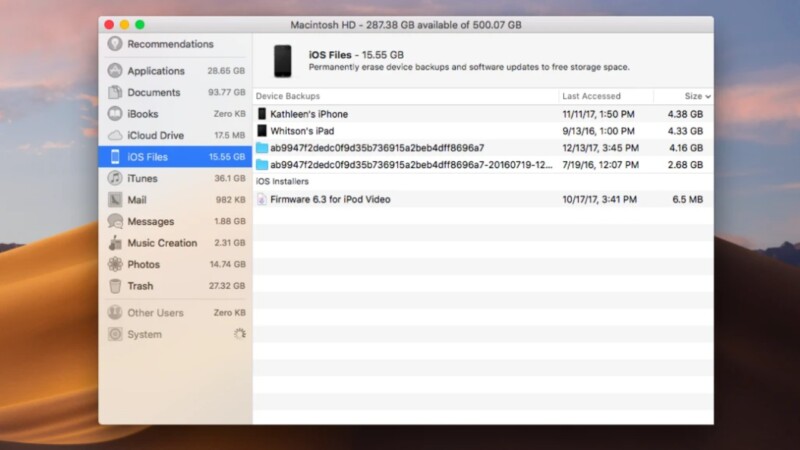
To determine the level of fullness of your drive, open About This Mac > Storage. When almost full, you would need to clean the disk space on your Mac so that your system can remain stable.
The “Clutter” Problem
Cache files, logs, old iOS backup files, and language files can consume gigabytes of storage. It is time-consuming and dangerous to clean them manually. If you are thinking I will clean my Mac myself, it will be a tedious process.
The Software Solution
For a deep, thorough, and safe clean-up of this system junk, many users rely on dedicated Mac cleaning tools. Software like 4DDiG Mac Cleaner can automatically scan for and remove gigabytes of unnecessary files. It can help free up both storage and RAM. Hence, it reduces the frequency of these memory errors. It’s a proactive way to maintain your Mac’s health.
Advanced Solutions: Digging Deeper
When you continue seeing mistakes, then it is time to go deeper.
Check Activity Monitor
Open Activity Monitor and go to the Memory tab. This tells you how your RAM is being utilized. In case you find one process consuming a gigantically large amount, terminate it. This is a good method of clearing RAM in real time.
-
Press “Command + Space” and search for “Activity Monitor,” then open it.
-
Locate the Memory” tab at the top and click it to sort the tasks by memory. Clicking the “Memory” button again will change between ascending and descending order.
3.

4.Terminate the processes by clicking to select them and clicking the “X” button on the top left to clean Ram Mac.
Update Everything
Memory leakage is usually brought about by old software. Updates macOS and Safari, Chrome, and extensions. These updates are devoid of attendant memory problems.
Reset Your Browser
When all else fails, reset your browser. This removes corrupt cache, extensions, and settings that could be causing recurring memory errors.
With all these methods, you can surely resolve the space issue on your Mac, no matter how old or new it is.
Conclusion: Building a Memory-Healthy Habit
Now you have the keys to dealing with memory lapses, whether it is a fast fix or a thorough cleaning. You can keep your Mac healthy and prevent future warnings by closing tabs, clearing up space, keeping track of apps, and using 4DDiG Mac Cleaner. A clean system is the safest provision, and now you are familiar with how to keep one clean.
So, if you were also facing errors like not enough memory to open this page, you know exactly what to do to get it fixed.
Read Also: What Happened to Hannah Kobayashi? True Story